

Description
Paccar DAVIE4 Diagnostic Program Not Working on 2016+ Peterbilt and Kenworth Trucks? Here’s the Fix
Have you purchased and installed the Paccar DAVIE4 diagnostic program, only to discover that it won’t properly communicate with 2016 and newer Peterbilt or Kenworth trucks?
Does the software identify the vehicle, but fail to display fault codes, live data, or diagnostic information?
If so, this article may save you hours—or even weeks—of frustration.
Why I’m Writing This
After spending countless hours troubleshooting DAVIE4 and receiving very little useful guidance from technical support, I wanted to document the solution that ultimately fixed the problem.
The good news? The solution turned out to be simple.
The bad news? Finding it wasn’t.
Hopefully, this post helps another technician avoid the same headaches.

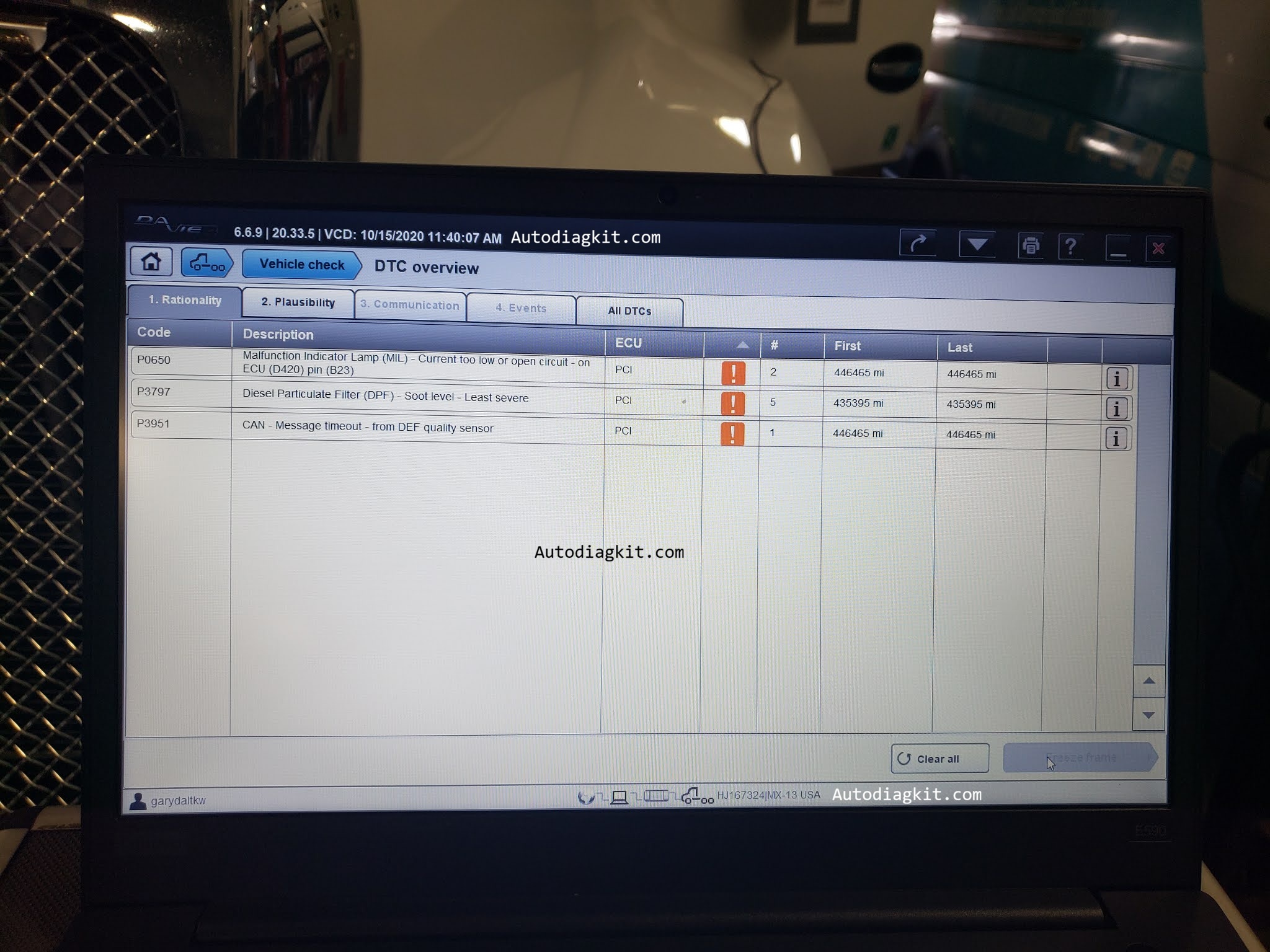
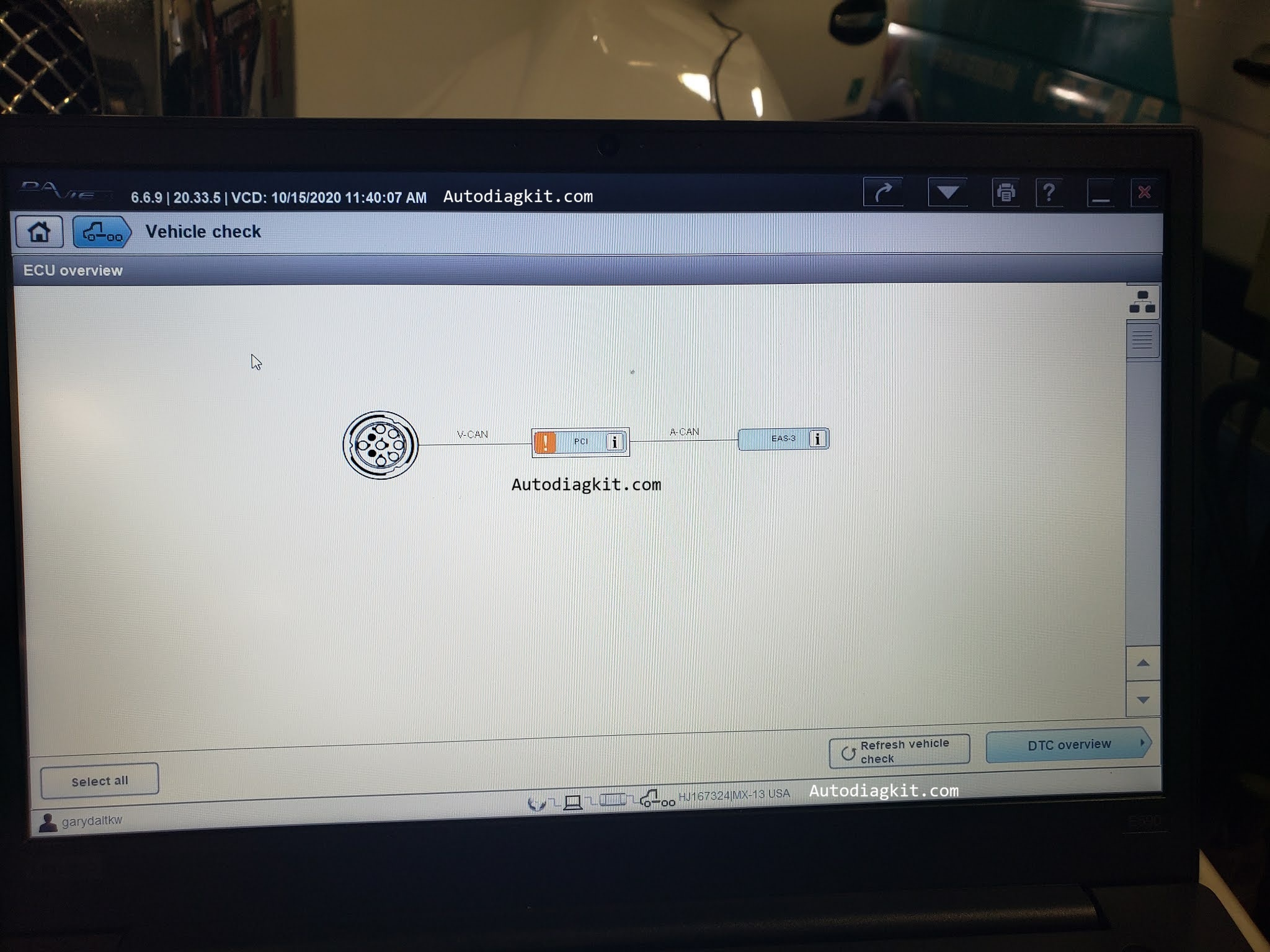
When the “vehicle check” button was clicked, the following screen appeared. Note the red connection blocks indicating no connection between the engine and aftertreatment system, to the program.
The Problem
I downloaded DAVIE4 directly from the Paccar website, installed it, activated the license, and updated the software.
My first test was on a 2016 Kenworth tractor.
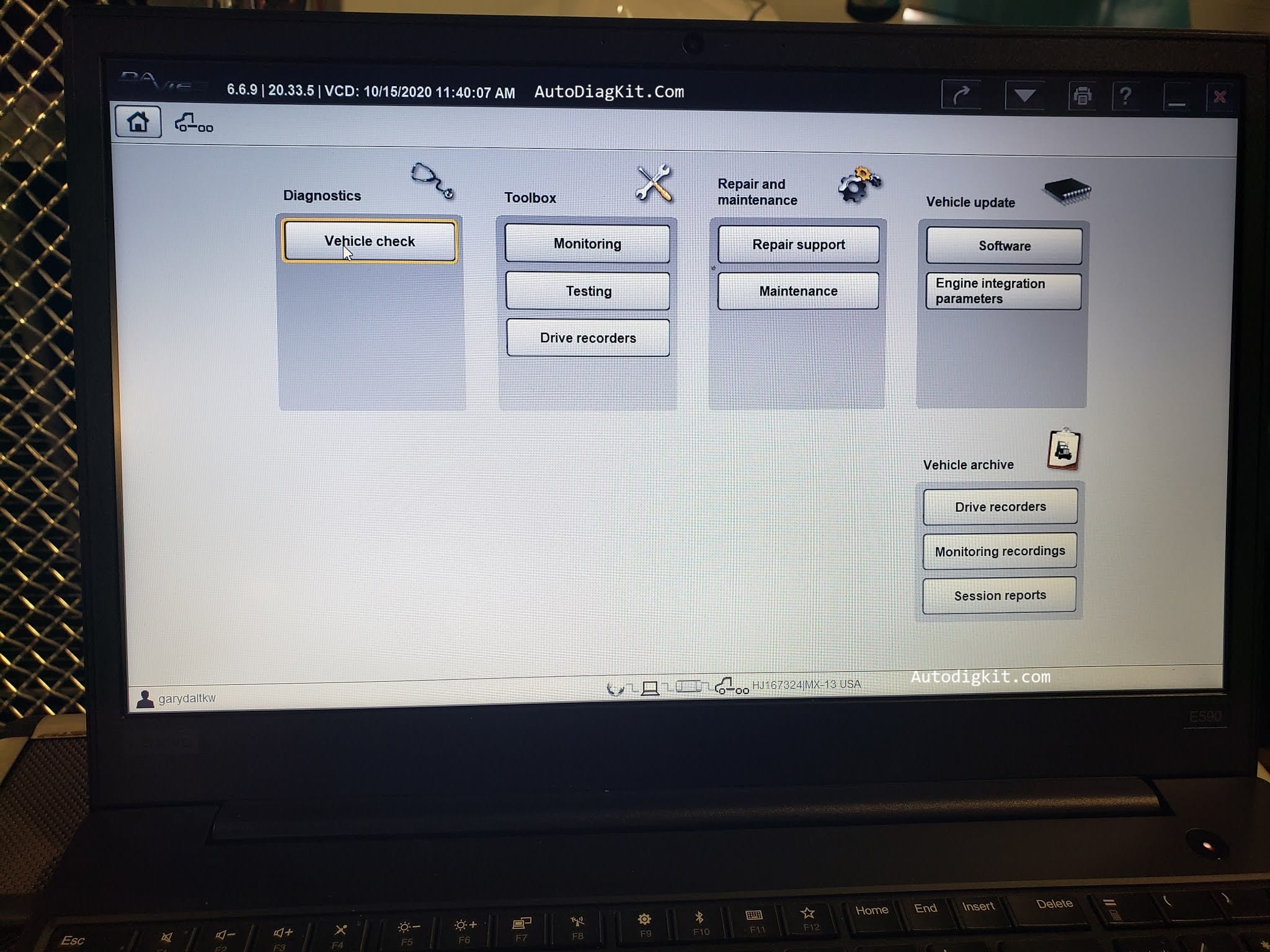
At first, everything appeared normal. DAVIE4 successfully identified the vehicle, and the Vehicle Check function seemed to run correctly. After the scan completed, the home screen appeared with all the expected diagnostic options available.

Notice that the VIN and engine information were displayed correctly, which suggested the software was communicating with the vehicle.
However, when I clicked Vehicle Check, the following screen appeared:
Insert screenshot showing red connection blocks.
The red connection indicators showed that DAVIE4 was unable to establish communication between the engine, aftertreatment system, and the diagnostic software.
Returning to the home screen and selecting Monitoring produced another clue.
 .
.
All monitoring options were grayed out. Clicking any of them produced no response.
At that point, it was obvious that DAVIE4 had a communication problem despite successfully identifying the vehicle.
My Troubleshooting Journey
My first call was to Paccar Technical Support.
Their initial diagnosis was that I was using an older Nexiq communication adapter and that DAVIE4 required the newer Nexiq 2 interface.
I purchased a DAF Device, installed the latest drivers, and tried again.
Nothing changed.
The software behaved exactly as before.
I updated DAVIE4, verified the VCI drivers, and contacted support again.
This time, after consulting with their software engineers, support suggested the issue might be specific to the truck I was connected to.
I explained that we had already tested several different Paccar vehicles with identical results.
Their recommendation?
Try another truck.
Predictably, the results were exactly the same.

Another support representative suggested attending a training class on DAVIE4 usage.
Over the next several weeks, I:
- Called Paccar support multiple times
- Contacted the company that sold us the license
- Rechecked all laptop settings against the installation guide
- Sent screenshots and log files
- Waited for promised callbacks that never came
Every support call began with the same questions:
- What version of DAVIE4 are you running?
- Which DAF interface are you using?
- What are your interface settings?
One support representative requested a log file. Several others requested screenshots of the grayed-out screens.
I even asked whether someone could remotely connect to my laptop and inspect the configuration.
The answer was no.
At that point, I began to suspect they didn’t know the solution.
The Real Solution
Eventually, I gave up on DAVIE4 support and contacted DAF support instead.
The technician remotely connected to my laptop and identified the problem in less than 20 seconds.
His first question:
“You’re not using a crossover cable, are you?”
A crossover cable?
I had never heard of it.
He explained that beginning with the 2016 model year, Paccar (along with Volvo) moved powertrain communication traffic from CAN 3 to CAN 1.

As a result, many diagnostic interfaces require a crossover cable to properly route the powertrain data so DAVIE4 can read it.
He recommended the DAF crossover cable:
Part Number: 406004
He also mentioned that similar versions are available from Paccar and other manufacturers.
We ultimately purchased an aftermarket version on eBay for approximately $70.

For additional information and cable options, refer to your preferred Nexiq or diagnostic equipment supplier.
Success at Last
When the crossover cable arrived, I connected it to a 2016 Kenworth and launched DAVIE4 again.
This time everything worked exactly as expected.
The vehicle connection screen showed proper communication between all systems.
The orange indicator between V-CAN and the connector indicated active fault codes were present.
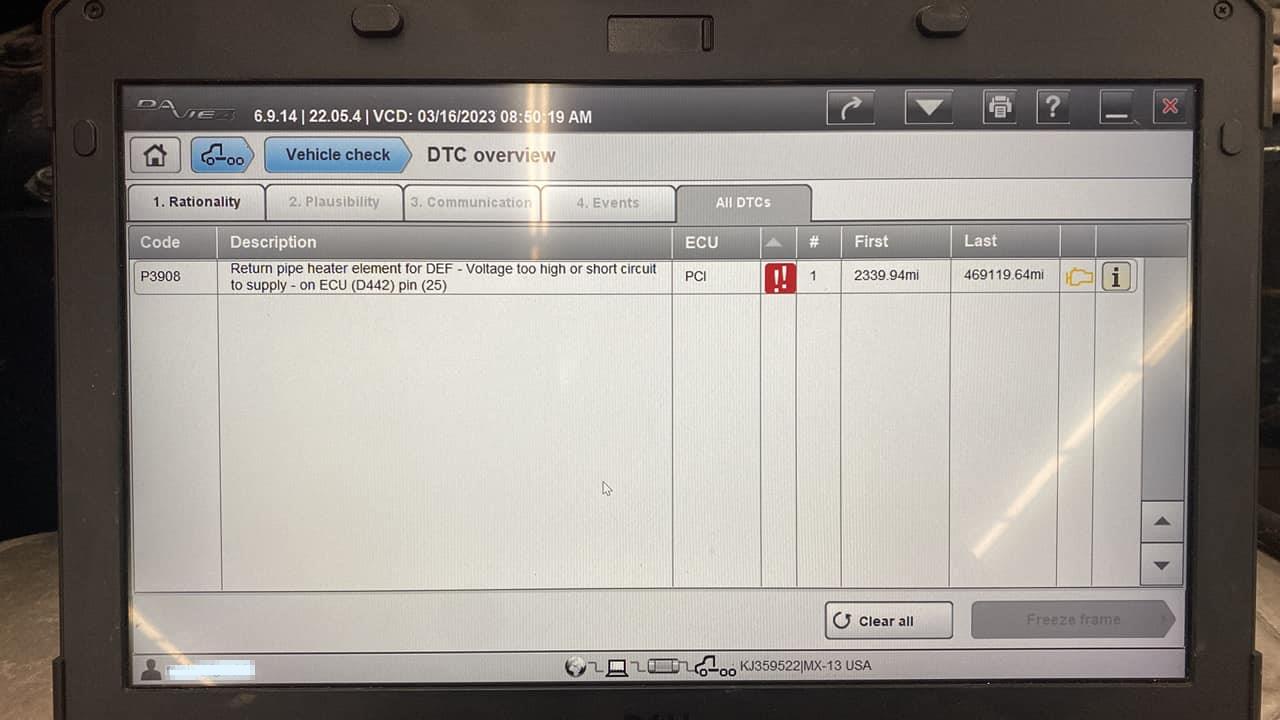
When I opened the fault code section, the codes displayed normally.
Problem solved.

Final Thoughts
Looking back, I probably should have investigated a communication issue sooner.
However, our shop had limited experience with newer Paccar trucks at the time, so the possibility wasn’t immediately obvious.
What still surprises me is that:
- The company that sold us the license didn’t know the answer.
- Paccar technical support didn’t know the answer.
- Multiple software engineers didn’t know the answer.
- The fix was related to a change that had been in place for several years.
Most frustrating of all, I found very little information online about this issue or DAVIE4 troubleshooting in general.
Hopefully, this article fills that gap.
If your DAVIE4 installation can identify a 2016 or newer Peterbilt or Kenworth but cannot display codes, live data, or monitoring functions, check whether you need a CAN crossover cable before spending hours chasing software or hardware issues.
It may be the simplest fix you’ll ever make.
Thanks for reading, and I hope this helps someone get back to diagnosing trucks instead of troubleshooting diagnostic software.


Reviews
There are no reviews yet.